How to Import Capital One Statements into QuickBooks
The cleanest way to import Capital One statements into QuickBooks is to convert your statement PDF into a .QBO file on your own computer, then use QuickBooks' built-in import. No live bank connection, no Capital One login handed to a third party - just the file QuickBooks already knows how to read.
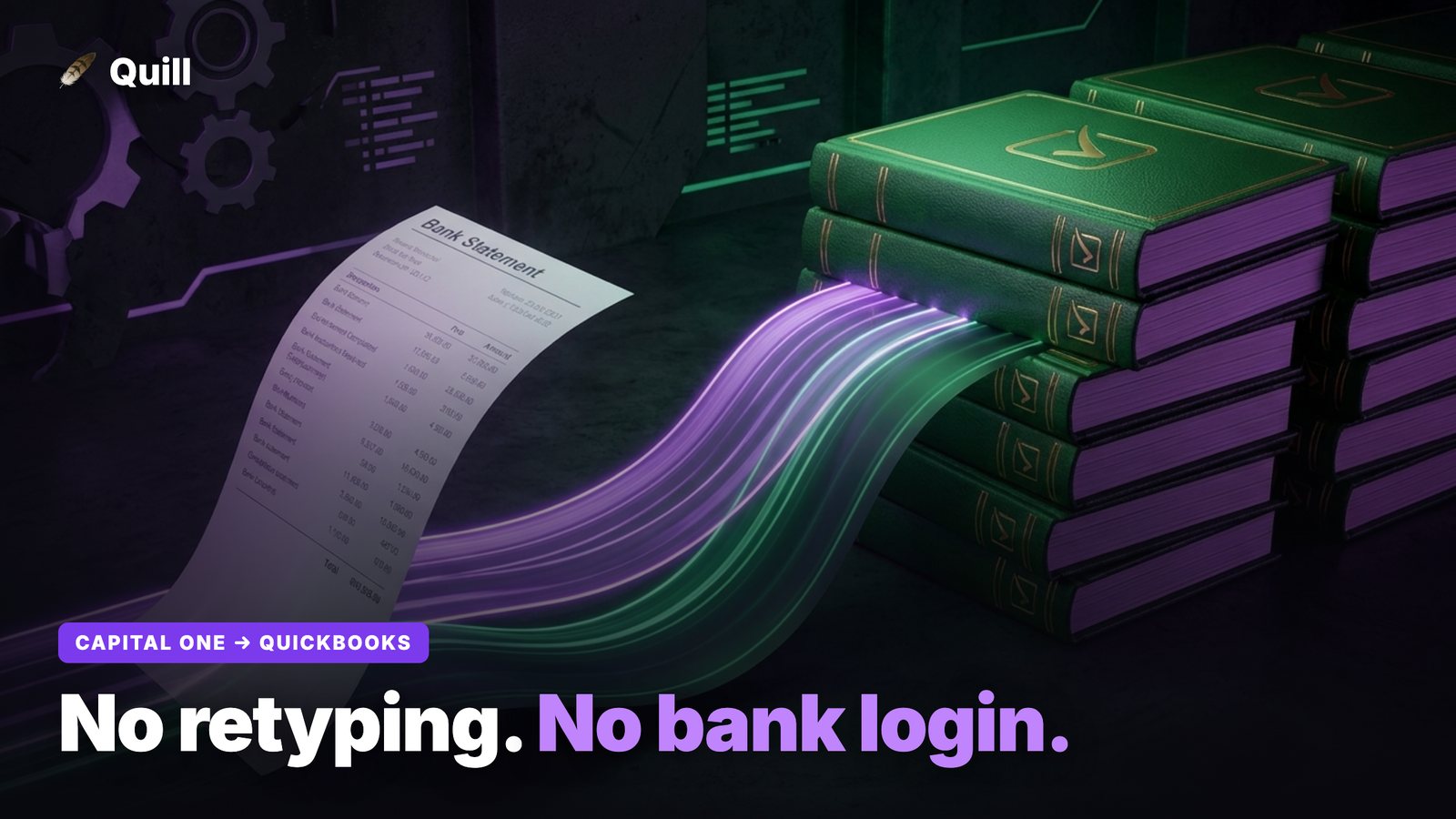
If you bank or carry a card with Capital One, you've probably hit one of two walls. Either the direct QuickBooks bank feed keeps dropping or duplicating transactions, or you've deliberately chosen not to connect your bank and now you're stuck with a stack of PDFs. Both problems have the same fix: turn the statement into a file QuickBooks treats like a normal download. Here's exactly how.
First, know which Capital One statement you have
Capital One issues two very different kinds of statements, and they import a little differently.
- Capital One credit cards (Venture, Quicksilver, Savor, Spark Business, etc.). These post as a credit card account in QuickBooks. Charges increase the balance you owe; payments reduce it. When you convert the PDF, you'll map it to a Credit Card account, not a bank account.
- Capital One 360 checking and savings (the bank side). These post as a bank account. Deposits are positive, withdrawals are negative, and you'll map the file to a Bank account in QuickBooks.
Getting the account type right up front is what keeps your QuickBooks register balanced. A credit card statement imported as a checking account will flip every sign and throw your reconciliation off - so decide which one you're working with before you import anything.
Why .QBO beats CSV for Capital One
QuickBooks accepts CSV, but a .QBO file (also called Web Connect) is the smoother path. QuickBooks treats a .QBO exactly like a download it pulled itself: it knows the account, the dates, the amounts, and - critically - each transaction carries a stable ID. Those IDs are how QuickBooks recognizes a transaction it has already seen, which is the whole game when you're trying to avoid duplicates.
CSV works in a pinch, but it forces you to map columns by hand every time and gives QuickBooks no reliable way to dedupe. If your QuickBooks version reads .QBO/OFX (Desktop and most Online plans do), prefer it.
The 4-step method
1. Download the statement PDF from Capital One
Sign in to Capital One, open the account, and download each statement period you need as a PDF. For year-end bookkeeping that's usually all twelve monthly statements. You don't need a CSV export and you don't need to enable any feed - the PDF Capital One already generates is enough.
2. Convert the PDF to .QBO on your own computer
This is the step that turns a stack of documents into something QuickBooks will accept. Open the PDF in a tool that reads it locally and outputs a QuickBooks-ready file.
This is what Quill was built for: drop a Capital One statement PDF in, and it parses every transaction on your own machine, then exports a .QBO/OFX file (with stable transaction IDs) or a CSV. Nothing is uploaded - the conversion happens entirely on your computer.
Because Quill also auto-categorizes as it parses, you can split Capital One charges into Personal and Business and fix any judgment calls with a manual override before the file ever reaches QuickBooks. That means cleaner data landing in your books instead of a wall of "Uncategorized."
3. Import the file into QuickBooks
In QuickBooks Desktop, go to File → Utilities → Import → Web Connect Files (.QBO), select the converted file, and when prompted choose the matching Capital One account (the credit card or the 360 bank account you set up). In QuickBooks Online, go to Transactions → Bank transactions, click the account, then Link account → Upload from file, and select your .QBO or CSV. QuickBooks will read the transactions in and drop them into the review queue.
4. Review, then add to the register
Imported transactions land in QuickBooks' "For Review" tab rather than posting straight to your books. Go through them, confirm the categories (or accept the ones Quill already assigned), and add them. This review pass is also your last chance to catch anything that looks off before it hits your reconciliation.
How to avoid duplicate transactions
Duplicates are the number-one frustration when importing Capital One into QuickBooks, and they come from two places. First, overlapping statement periodsif January's statement ends mid-month and February's restarts a few days earlier, the same charges can appear twice. Import each period exactly once and watch the date boundaries.
Second, a live bank feed running alongside your imports. If Capital One is connected to QuickBooks and you also import a .QBO, the same transactions arrive through two doors. Pick one method. If you're importing statements, turn the live feed off for that account. A .QBO file carries stable transaction IDs, so QuickBooks can recognize and skip anything it already has - but only if you're not feeding it the same data from a second source.
What if QuickBooks rejects the file?
The usual culprits are a mismatched account type (a credit card file aimed at a bank account), a date range QuickBooks considers too old for Web Connect, or a malformed export from a generic converter. Converting with a tool that produces a properly structured .QBO/OFX - correct account type, valid dates, stable IDs - sidesteps almost all of these. If you've been fighting CSV column mapping, switching to .QBO usually ends the fight.
For a broader walkthrough that applies to any institution, not just Capital One, see our guide on how to export bank transactions to QuickBooks.
Frequently asked questions
Can I import Capital One statements into QuickBooks without connecting my bank?
Yes. Download your Capital One statement as a PDF, convert it to a .QBO (Web Connect) file on your own computer, then use QuickBooks' File → Import option. You never have to link your Capital One login or use a live bank feed.
What file format does QuickBooks need for Capital One transactions?
QuickBooks reads .QBO (Web Connect) and OFX files natively, and also accepts CSV. A .QBO file is the smoothest because QuickBooks treats it like a normal bank download and matches it to the right account. Quill converts a Capital One PDF into .QBO/OFX or CSV locally.
How do I avoid duplicate transactions when importing Capital One into QuickBooks?
Import each statement period only once, and turn off the live Capital One bank feed for that account so the same transactions don't arrive twice. A .QBO file with stable transaction IDs lets QuickBooks recognize and skip anything already imported.
Turn a Capital One PDF into a QuickBooks file in minutes
Drop your Capital One credit card or 360 statement into Quill and export a clean .QBO, OFX, or CSV - categorized, deduped, and 100% on your own machine. One-time purchase, no bank login.
Get Quill