How to Import Chase Statements into QuickBooks
You can import Chase statements into QuickBooks straight from the statement PDF - convert it to a .QBO (Web Connect) file on your own computer, then import that file into QuickBooks Online or Desktop. No bank connection, no online banking password, and no duplicate transactions. Here's the exact process.
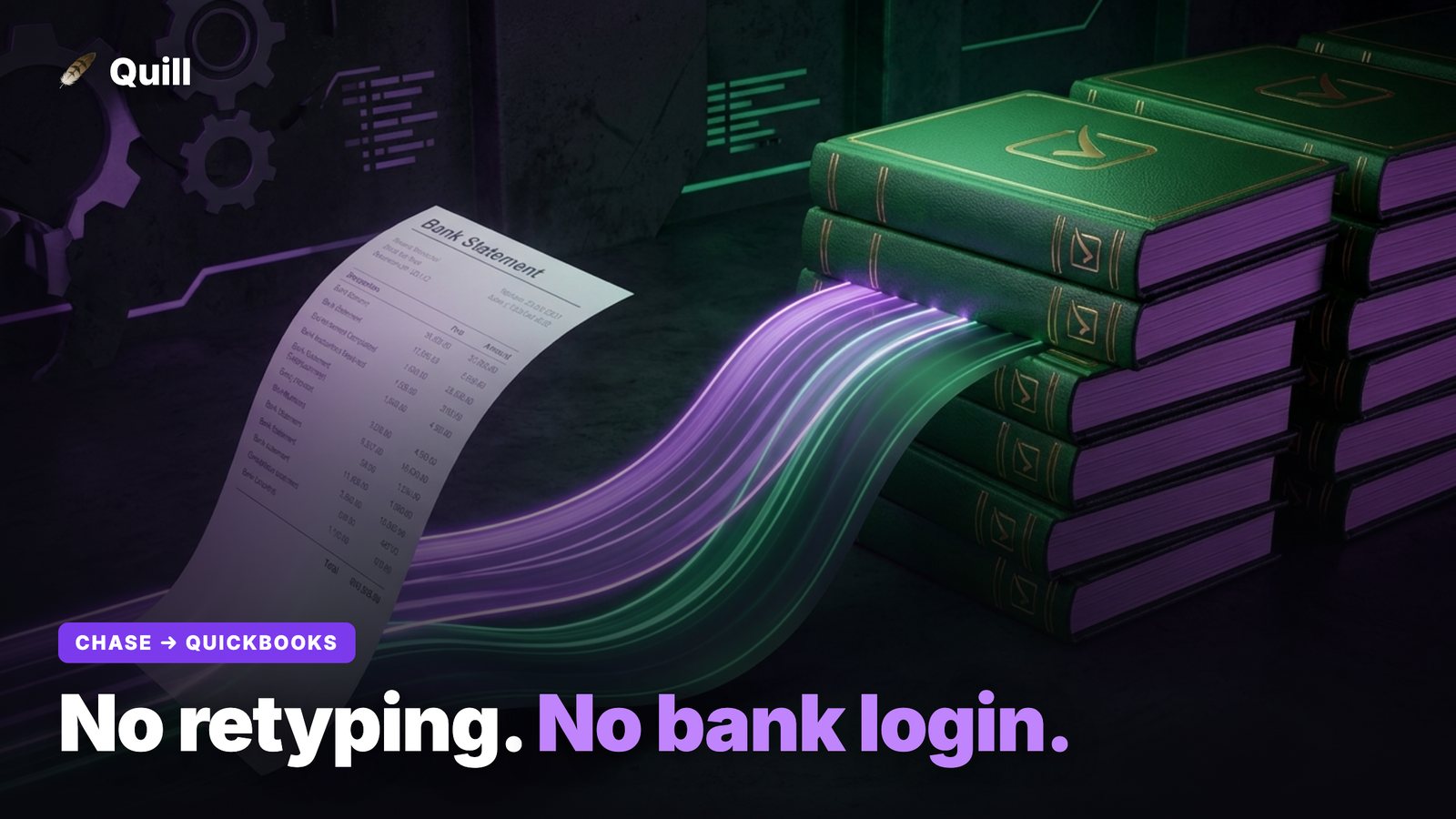
Plenty of Chase customers don't want to link their bank directly to QuickBooks. Maybe the connection keeps dropping and re-authenticating, maybe you're cleaning up a prior year that the live feed won't reach back to, or maybe you'd simply rather not hand QuickBooks a standing pipe into your accounts. Whatever the reason, the statement PDF you can already download from chase.com is enough to get every transaction into your books cleanly.
The short answer
QuickBooks imports a file format called .QBOalso known as Web Connect or OFX. It's the same format the live bank feed uses behind the scenes. So instead of connecting Chase, you convert your statement into that file and import it manually. The whole job is three moves: download the PDF from Chase, convert it to .QBO locally, and import the .QBO into QuickBooks. The only part that needs care is making sure re-imports don't create duplicates - covered below.
Step 1 - Download your statement PDF from Chase
Log into chase.com or the Chase mobile app and open the account you're reconciling (checking, savings, or a Chase credit card such as Ink or Freedom).
- Go to the account, then Statements & documents (on the web, it's under the account's menu; on a card it's Statements).
- Pick the statement period you need and choose DownloadChase delivers it as a PDF.
- Repeat for each month in the range you're importing. Chase keeps roughly seven years of statements online, which is why the PDF route reaches back further than a live feed usually will.
You do not need a CSV or the .QBO download that Chase sometimes offers from the activity page - a plain statement PDF carries every transaction, date, and amount you need.
Step 2 - Convert the Chase PDF to .QBO on your own machine
This is the step that turns a human-readable statement into something QuickBooks will accept. Open the PDF in a local converter, which reads each line - date, description, amount - and writes a valid Web Connect file.
This is exactly what Quill does: drop a Chase statement PDF in, it parses every transaction locally on your computer, and exports a QuickBooks-ready .QBO (OFX Web Connect) file. Nothing is uploaded - the PDF never leaves your machine.
Two things matter when you generate the file:
- Correct account type. A Chase checking or savings statement should produce a bank-type .QBO; a Chase credit card statement should produce a credit-card-type .QBO. Quill sets this based on the statement so QuickBooks routes it to the right register.
- Stable transaction IDs. Every transaction in the file gets a unique ID (the OFX
FITID) that stays the same if you ever convert the statement again. This is the single thing that prevents duplicates, and it's why a purpose-built converter beats a quick manual export.
Step 3 - Import the .QBO into QuickBooks
The import lives in slightly different places depending on which QuickBooks you run, but the file is identical for both.
QuickBooks Online
- Go to Transactions → Bank transactions (older menus call it Banking).
- Select the Chase account tile, click the dropdown, and choose Upload from file.
- Select your
.QBOfile, map it to the correct Chase account in QuickBooks, and finish. The transactions land in the For review tab just like a bank feed.
QuickBooks Desktop
- Go to File → Utilities → Import → Web Connect Files.
- Choose your
.QBOfile and, when prompted, pick the existing Chase account (or create one). - The transactions flow into the Bank Feeds center for you to review and accept.
In both versions, importing does not post anything to your books automatically - every transaction waits in a review queue. You categorize and match there, exactly as you would with a live feed.
Step 4 - Why you won't get duplicates
Lead with the fix: duplicates are prevented by stable transaction IDs, not by being careful about date ranges. When each transaction carries a consistent FITID, QuickBooks remembers what it has already imported. Re-import the same month, or import a new statement whose dates overlap the last one, and QuickBooks silently skips the transactions it already has.
The classic duplicate problem comes from converters that assign a fresh, random ID on every run - so the same coffee charge looks like a brand-new transaction each time. Because Quill writes stable IDs, you can safely re-export and re-import a statement after fixing a categorization without doubling your register. If you're cleaning up a full year, you can also import month by month with confidence that the seams between statements won't double-count.
A note on cleaning up before import
Many Chase accounts mix business and personal spending. Before you export the .QBO, it's worth splitting those transactions so only the right ones land in your business books - Quill's Personal/Business split and auto-categorize (with manual override on every line) let you sort that out first, then export a .QBO of just what belongs in QuickBooks. If you keep books in more than one tool, the same data also exports to CSV. For a broader walkthrough of getting transactions into QuickBooks from any bank, see our guide on exporting bank transactions to QuickBooks.
Frequently asked questions
Can I import Chase statements into QuickBooks without connecting my bank?
Yes. Download your Chase statement as a PDF, convert it to a .QBO (Web Connect) file on your own computer, and import that file into QuickBooks. QuickBooks treats it exactly like a bank feed, but no live connection to Chase is ever created and you never share your online banking password.
How do I avoid duplicate transactions when importing Chase into QuickBooks?
Duplicates happen when each import assigns new IDs to the same transactions. Use a converter that writes a stable, unique FITID for every transaction. QuickBooks then recognizes anything it has already seen and skips it, so overlapping date ranges or re-imports won't double up.
Does QuickBooks accept .QBO files from Chase statements?
Yes. Both QuickBooks Online and QuickBooks Desktop import .QBO (Web Connect / OFX) files. The format is the same one banks use for direct connect feeds, so a properly formatted .QBO converted from your Chase PDF imports cleanly into either version.
Turn Chase PDFs into clean QuickBooks imports
Drop your Chase statement PDFs into Quill and export QuickBooks-ready .QBO files with stable transaction IDs - no bank login, no duplicates, 100% on your own machine. One-time purchase.
Get Quill